# Standalone Activities - .NET SDK
> Execute Activities independently without a Workflow using the Temporal .NET SDK.
> **Public Preview**
Standalone Activities are Activities that run independently, without being orchestrated by a
Workflow. Instead of starting an Activity from within a Workflow Definition, you start a Standalone
Activity directly from a Temporal Client.
The way you write the Activity and register it with a Worker is identical to [Workflow
Activities](/develop/dotnet/activities/basics#develop-activity). The only difference is that you execute a
Standalone Activity directly from your Temporal Client.
This page covers the following:
- [Get Started with Standalone Activities](#get-started)
- [Define your Activity](#define-activity)
- [Run a Worker with the Activity registered](#run-worker)
- [Execute a Standalone Activity](#execute-activity)
- [Start a Standalone Activity without waiting for the result](#start-activity)
- [Get a handle to an existing Standalone Activity](#get-activity-handle)
- [Wait for the result of a Standalone Activity](#get-activity-result)
- [List Standalone Activities](#list-activities)
- [Count Standalone Activities](#count-activities)
- [Run Standalone Activities with Temporal Cloud](#run-standalone-activities-temporal-cloud)
> **📝 Note:**
>
> This documentation uses source code from the [StandaloneActivity](https://github.com/temporalio/samples-dotnet/tree/main/src/StandaloneActivity) sample project.
>
## Get Started with Standalone Activities
Prerequisites:
- **[.NET](https://dotnet.microsoft.com/download)** 8.0+
- **Temporal .NET SDK** (v1.12.0 or higher). See the [.NET Quickstart](https://docs.temporal.io/develop/dotnet/set-up-your-local-dotnet) for install instructions.
- **Temporal CLI** v1.7.0 or higher
Install with Homebrew:
```bash
brew install temporal
```
Or see the [Temporal CLI install guide](/cli/setup-cli) for other platforms.
Verify the installation:
```bash
temporal --version
```
Start the Temporal development server:
```bash
temporal server start-dev
```
This command automatically starts the Temporal development server with the Web UI, and creates the `default` Namespace.
It uses an in-memory database, so do not use it for real use cases.
> **ℹ️ Info:**
> Temporal Cloud
>
> All code samples on this page use
> [`ClientEnvConfig.LoadClientConnectOptions()`](https://dotnet.temporal.io/api/Temporalio.Common.EnvConfig.ClientEnvConfig.html)
> to configure the Temporal Client connection. It responds to [environment
> variables](/references/client-environment-configuration) and [TOML configuration
> files](/references/client-environment-configuration), so the same code works against a local dev
> server and Temporal Cloud without changes. See [Run Standalone Activities with Temporal
> Cloud](#run-standalone-activities-temporal-cloud) below.
>
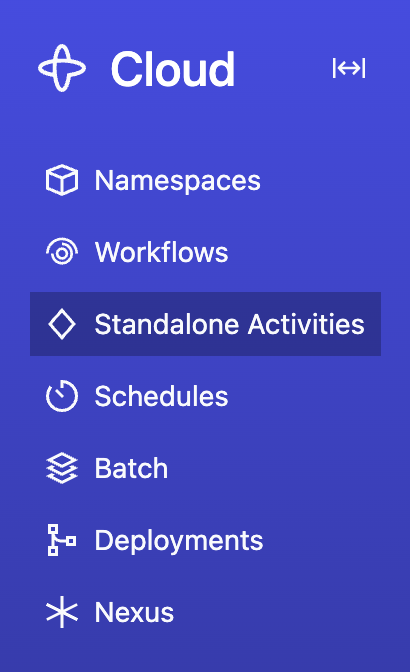
The Temporal Server will now be available for client connections on `localhost:7233`, and the
Temporal Web UI will now be accessible at [http://localhost:8233](http://localhost:8233). Standalone
Activities are available from the nav bar item located towards the top left of the page:
 Clone the [samples-dotnet](https://github.com/temporalio/samples-dotnet) repository to follow along:
```
git clone https://github.com/temporalio/samples-dotnet.git
cd samples-dotnet
```
The sample project is structured as follows:
```
src/StandaloneActivity/
├── MyActivities.cs
├── Program.cs
├── README.md
└── TemporalioSamples.StandaloneActivity.csproj
```
## Define your Activity
An Activity in the Temporal .NET SDK is a method decorated with the `[Activity]` attribute. The way
you write a Standalone Activity is identical to how you write an Activity orchestrated by a Workflow.
In fact, the same Activity can be executed both as a Standalone Activity and as a Workflow Activity.
[src/StandaloneActivity/MyActivities.cs](https://github.com/temporalio/samples-dotnet/blob/main/src/StandaloneActivity/MyActivities.cs)
```csharp
namespace TemporalioSamples.StandaloneActivity;
using Temporalio.Activities;
public static class MyActivities
{
[Activity]
public static Task ComposeGreetingAsync(ComposeGreetingInput input) =>
Task.FromResult($"{input.Greeting}, {input.Name}!");
}
public record ComposeGreetingInput(string Greeting, string Name);
```
## Run a Worker with the Activity registered
Running a Worker for Standalone Activities is the same as running a Worker for Workflow Activities —
you create a Worker, register the Activity, and run the Worker. The Worker doesn't need to know
whether the Activity will be invoked from a Workflow or as a Standalone Activity. See [How to develop
a Worker](/develop/dotnet/workers/run-worker-process) for more details on Worker setup and
configuration options.
[src/StandaloneActivity/Program.cs](https://github.com/temporalio/samples-dotnet/blob/main/src/StandaloneActivity/Program.cs)
```csharp
using Microsoft.Extensions.Logging;
using Temporalio.Client;
using Temporalio.Common.EnvConfig;
using Temporalio.Worker;
using TemporalioSamples.StandaloneActivity;
var connectOptions = ClientEnvConfig.LoadClientConnectOptions();
connectOptions.TargetHost ??= "localhost:7233";
connectOptions.LoggerFactory = LoggerFactory.Create(builder =>
builder.
AddSimpleConsole(options => options.TimestampFormat = "[HH:mm:ss] ").
SetMinimumLevel(LogLevel.Information));
var client = await TemporalClient.ConnectAsync(connectOptions);
const string taskQueue = "standalone-activity-sample";
using var tokenSource = new CancellationTokenSource();
Console.CancelKeyPress += (_, eventArgs) =>
{
tokenSource.Cancel();
eventArgs.Cancel = true;
};
using var worker = new TemporalWorker(
client,
new TemporalWorkerOptions(taskQueue).
AddActivity(MyActivities.ComposeGreetingAsync));
await worker.ExecuteAsync(tokenSource.Token);
```
Open a new terminal, navigate to the `samples-dotnet` directory, and run the Worker:
```
dotnet run --project src/StandaloneActivity worker
```
Leave this terminal running - the Worker needs to stay up to process activities.
## Execute a Standalone Activity
Use
[`client.ExecuteActivityAsync()`](https://dotnet.temporal.io/api/Temporalio.Client.ITemporalClientExtensions.html)
to execute a Standalone Activity and wait for the result. Call this from your application code, not
from inside a Workflow Definition. This durably enqueues your Standalone Activity in the Temporal
Server, waits for it to be executed on your Worker, and then returns the result.
[src/StandaloneActivity/Program.cs](https://github.com/temporalio/samples-dotnet/blob/main/src/StandaloneActivity/Program.cs)
```csharp
using Temporalio.Client;
using Temporalio.Common.EnvConfig;
using TemporalioSamples.StandaloneActivity;
var connectOptions = ClientEnvConfig.LoadClientConnectOptions();
connectOptions.TargetHost ??= "localhost:7233";
var client = await TemporalClient.ConnectAsync(connectOptions);
var result = await client.ExecuteActivityAsync(
() => MyActivities.ComposeGreetingAsync(new ComposeGreetingInput("Hello", "World")),
new("standalone-activity-id", "standalone-activity-sample")
{
ScheduleToCloseTimeout = TimeSpan.FromSeconds(10),
});
Console.WriteLine($"Activity result: {result}");
```
You can pass the Activity as either a lambda expression or a string Activity type name:
```csharp
// Using a lambda expression (type-safe)
var result = await client.ExecuteActivityAsync(
() => MyActivities.ComposeGreetingAsync(new ComposeGreetingInput("Hello", "World")),
new("standalone-activity-id", "standalone-activity-sample")
{
ScheduleToCloseTimeout = TimeSpan.FromSeconds(10),
});
// Using a string type name
var result = await client.ExecuteActivityAsync(
"ComposeGreeting",
new object?[] { new ComposeGreetingInput("Hello", "World") },
new("standalone-activity-id", "standalone-activity-sample")
{
ScheduleToCloseTimeout = TimeSpan.FromSeconds(10),
});
```
`StartActivityOptions` requires `Id`, `TaskQueue`, and at least one of `ScheduleToCloseTimeout` or
`StartToCloseTimeout`. See
[`StartActivityOptions`](https://dotnet.temporal.io/api/Temporalio.Client.StartActivityOptions.html)
in the API reference for the full set of options.
To run it:
1. Make sure the Temporal Server is running (from the [Get Started](#get-started) step above).
2. Make sure the Worker is running (from the [Run a Worker](#run-worker) step above).
3. Open a new terminal, navigate to the `samples-dotnet` directory, and run:
```
dotnet run --project src/StandaloneActivity execute-activity
```
Or use the Temporal CLI:
```bash
temporal activity execute \
--type ComposeGreeting \
--activity-id standalone-activity-id \
--task-queue standalone-activity-sample \
--schedule-to-close-timeout 10s \
--input '{"Greeting": "Hello", "Name": "World"}'
```
## Start a Standalone Activity without waiting for the result
Use
[`client.StartActivityAsync()`](https://dotnet.temporal.io/api/Temporalio.Client.ITemporalClient.html)
to start a Standalone Activity and get a handle without waiting for the result:
[src/StandaloneActivity/Program.cs](https://github.com/temporalio/samples-dotnet/blob/main/src/StandaloneActivity/Program.cs)
```csharp
using Temporalio.Client;
using Temporalio.Common.EnvConfig;
using TemporalioSamples.StandaloneActivity;
var connectOptions = ClientEnvConfig.LoadClientConnectOptions();
connectOptions.TargetHost ??= "localhost:7233";
var client = await TemporalClient.ConnectAsync(connectOptions);
var handle = await client.StartActivityAsync(
() => MyActivities.ComposeGreetingAsync(new ComposeGreetingInput("Hello", "World")),
new("standalone-activity-id", "standalone-activity-sample")
{
ScheduleToCloseTimeout = TimeSpan.FromSeconds(10),
});
Console.WriteLine($"Started activity: {handle.Id}");
// Wait for the result later
var result = await handle.GetResultAsync();
Console.WriteLine($"Activity result: {result}");
```
With the Temporal Server and Worker running, open a new terminal in the `samples-dotnet` directory and run:
```
dotnet run --project src/StandaloneActivity start-activity
```
Or use the Temporal CLI:
```bash
temporal activity start \
--type ComposeGreeting \
--activity-id standalone-activity-id \
--task-queue standalone-activity-sample \
--schedule-to-close-timeout 10s \
--input '{"Greeting": "Hello", "Name": "World"}'
```
## Get a handle to an existing Standalone Activity
Use `client.GetActivityHandle()` to create a handle to a previously started Standalone Activity:
```csharp
// Without a known result type
var handle = client.GetActivityHandle("my-activity-id", runId: "the-run-id");
// With a known result type
var typedHandle = client.GetActivityHandle("my-activity-id", runId: "the-run-id");
```
You can use the handle to wait for the result, describe, cancel, or terminate the Activity.
## Wait for the result of a Standalone Activity
Under the hood, calling `client.ExecuteActivityAsync()` is the same as calling
`client.StartActivityAsync()` to durably enqueue the Standalone Activity, and then calling
`await handle.GetResultAsync()` to wait for the Activity to be executed and return the result:
```csharp
var result = await handle.GetResultAsync();
```
Or use the Temporal CLI to wait for a result by Activity ID:
```bash
temporal activity result --activity-id my-standalone-activity-id
```
## List Standalone Activities
Use
[`client.ListActivitiesAsync()`](https://dotnet.temporal.io/api/Temporalio.Client.ITemporalClient.html)
to list Standalone Activity Executions that match a [List Filter](/list-filter) query. The result is
an `IAsyncEnumerable` that yields `ActivityExecution` entries.
These APIs return only Standalone Activity Executions. Activities running inside Workflows are not included.
[src/StandaloneActivity/Program.cs](https://github.com/temporalio/samples-dotnet/blob/main/src/StandaloneActivity/Program.cs)
```csharp
using Temporalio.Client;
using Temporalio.Common.EnvConfig;
var connectOptions = ClientEnvConfig.LoadClientConnectOptions();
connectOptions.TargetHost ??= "localhost:7233";
var client = await TemporalClient.ConnectAsync(connectOptions);
await foreach (var info in client.ListActivitiesAsync(
"TaskQueue = 'standalone-activity-sample'"))
{
Console.WriteLine(
$"ActivityID: {info.ActivityId}, Type: {info.ActivityType}, Status: {info.Status}");
}
```
Run it:
```
dotnet run --project src/StandaloneActivity list-activities
```
Or use the Temporal CLI:
```bash
temporal activity list
```
The query parameter accepts the same [List Filter](/list-filter) syntax used for [Workflow
Visibility](/visibility). For example, `"ActivityType = 'ComposeGreeting' AND Status = 'Running'"`.
## Count Standalone Activities
Use
[`client.CountActivitiesAsync()`](https://dotnet.temporal.io/api/Temporalio.Client.ITemporalClient.html)
to count Standalone Activity Executions that match a [List Filter](/list-filter) query. This returns
the total count of executions (running, completed, failed, etc.) - not the number of queued tasks.
It works the same way as counting Workflow Executions.
[src/StandaloneActivity/Program.cs](https://github.com/temporalio/samples-dotnet/blob/main/src/StandaloneActivity/Program.cs)
```csharp
using Temporalio.Client;
using Temporalio.Common.EnvConfig;
var connectOptions = ClientEnvConfig.LoadClientConnectOptions();
connectOptions.TargetHost ??= "localhost:7233";
var client = await TemporalClient.ConnectAsync(connectOptions);
var resp = await client.CountActivitiesAsync(
"TaskQueue = 'standalone-activity-sample'");
Console.WriteLine($"Total activities: {resp.Count}");
```
Run it:
```
dotnet run --project src/StandaloneActivity count-activities
```
Or use the Temporal CLI:
```bash
temporal activity count
```
## Run Standalone Activities with Temporal Cloud
The code samples on this page use `ClientEnvConfig.LoadClientConnectOptions()`, so the same code
works against Temporal Cloud - just configure the connection via environment variables or a TOML
profile. No code changes are needed.
For a step-by-step guide on connecting to Temporal Cloud, including Namespace creation, certificate
generation, and authentication setup in the Cloud UI, see
[Connect to Temporal Cloud](/develop/dotnet/client/temporal-client#connect-to-temporal-cloud).
### Connect with mTLS
Set these environment variables with values from your Temporal Cloud Namespace settings:
```
export TEMPORAL_ADDRESS=..tmprl.cloud:7233
export TEMPORAL_NAMESPACE=.
export TEMPORAL_TLS_CLIENT_CERT_PATH='path/to/your/client.pem'
export TEMPORAL_TLS_CLIENT_KEY_PATH='path/to/your/client.key'
```
### Connect with an API key
Set these environment variables with values from your Temporal Cloud API key settings:
```
export TEMPORAL_ADDRESS=..tmprl.cloud:7233
export TEMPORAL_NAMESPACE=.
export TEMPORAL_API_KEY=
```
Then run the Worker and starter code as shown in the earlier sections.
Clone the [samples-dotnet](https://github.com/temporalio/samples-dotnet) repository to follow along:
```
git clone https://github.com/temporalio/samples-dotnet.git
cd samples-dotnet
```
The sample project is structured as follows:
```
src/StandaloneActivity/
├── MyActivities.cs
├── Program.cs
├── README.md
└── TemporalioSamples.StandaloneActivity.csproj
```
## Define your Activity
An Activity in the Temporal .NET SDK is a method decorated with the `[Activity]` attribute. The way
you write a Standalone Activity is identical to how you write an Activity orchestrated by a Workflow.
In fact, the same Activity can be executed both as a Standalone Activity and as a Workflow Activity.
[src/StandaloneActivity/MyActivities.cs](https://github.com/temporalio/samples-dotnet/blob/main/src/StandaloneActivity/MyActivities.cs)
```csharp
namespace TemporalioSamples.StandaloneActivity;
using Temporalio.Activities;
public static class MyActivities
{
[Activity]
public static Task ComposeGreetingAsync(ComposeGreetingInput input) =>
Task.FromResult($"{input.Greeting}, {input.Name}!");
}
public record ComposeGreetingInput(string Greeting, string Name);
```
## Run a Worker with the Activity registered
Running a Worker for Standalone Activities is the same as running a Worker for Workflow Activities —
you create a Worker, register the Activity, and run the Worker. The Worker doesn't need to know
whether the Activity will be invoked from a Workflow or as a Standalone Activity. See [How to develop
a Worker](/develop/dotnet/workers/run-worker-process) for more details on Worker setup and
configuration options.
[src/StandaloneActivity/Program.cs](https://github.com/temporalio/samples-dotnet/blob/main/src/StandaloneActivity/Program.cs)
```csharp
using Microsoft.Extensions.Logging;
using Temporalio.Client;
using Temporalio.Common.EnvConfig;
using Temporalio.Worker;
using TemporalioSamples.StandaloneActivity;
var connectOptions = ClientEnvConfig.LoadClientConnectOptions();
connectOptions.TargetHost ??= "localhost:7233";
connectOptions.LoggerFactory = LoggerFactory.Create(builder =>
builder.
AddSimpleConsole(options => options.TimestampFormat = "[HH:mm:ss] ").
SetMinimumLevel(LogLevel.Information));
var client = await TemporalClient.ConnectAsync(connectOptions);
const string taskQueue = "standalone-activity-sample";
using var tokenSource = new CancellationTokenSource();
Console.CancelKeyPress += (_, eventArgs) =>
{
tokenSource.Cancel();
eventArgs.Cancel = true;
};
using var worker = new TemporalWorker(
client,
new TemporalWorkerOptions(taskQueue).
AddActivity(MyActivities.ComposeGreetingAsync));
await worker.ExecuteAsync(tokenSource.Token);
```
Open a new terminal, navigate to the `samples-dotnet` directory, and run the Worker:
```
dotnet run --project src/StandaloneActivity worker
```
Leave this terminal running - the Worker needs to stay up to process activities.
## Execute a Standalone Activity
Use
[`client.ExecuteActivityAsync()`](https://dotnet.temporal.io/api/Temporalio.Client.ITemporalClientExtensions.html)
to execute a Standalone Activity and wait for the result. Call this from your application code, not
from inside a Workflow Definition. This durably enqueues your Standalone Activity in the Temporal
Server, waits for it to be executed on your Worker, and then returns the result.
[src/StandaloneActivity/Program.cs](https://github.com/temporalio/samples-dotnet/blob/main/src/StandaloneActivity/Program.cs)
```csharp
using Temporalio.Client;
using Temporalio.Common.EnvConfig;
using TemporalioSamples.StandaloneActivity;
var connectOptions = ClientEnvConfig.LoadClientConnectOptions();
connectOptions.TargetHost ??= "localhost:7233";
var client = await TemporalClient.ConnectAsync(connectOptions);
var result = await client.ExecuteActivityAsync(
() => MyActivities.ComposeGreetingAsync(new ComposeGreetingInput("Hello", "World")),
new("standalone-activity-id", "standalone-activity-sample")
{
ScheduleToCloseTimeout = TimeSpan.FromSeconds(10),
});
Console.WriteLine($"Activity result: {result}");
```
You can pass the Activity as either a lambda expression or a string Activity type name:
```csharp
// Using a lambda expression (type-safe)
var result = await client.ExecuteActivityAsync(
() => MyActivities.ComposeGreetingAsync(new ComposeGreetingInput("Hello", "World")),
new("standalone-activity-id", "standalone-activity-sample")
{
ScheduleToCloseTimeout = TimeSpan.FromSeconds(10),
});
// Using a string type name
var result = await client.ExecuteActivityAsync(
"ComposeGreeting",
new object?[] { new ComposeGreetingInput("Hello", "World") },
new("standalone-activity-id", "standalone-activity-sample")
{
ScheduleToCloseTimeout = TimeSpan.FromSeconds(10),
});
```
`StartActivityOptions` requires `Id`, `TaskQueue`, and at least one of `ScheduleToCloseTimeout` or
`StartToCloseTimeout`. See
[`StartActivityOptions`](https://dotnet.temporal.io/api/Temporalio.Client.StartActivityOptions.html)
in the API reference for the full set of options.
To run it:
1. Make sure the Temporal Server is running (from the [Get Started](#get-started) step above).
2. Make sure the Worker is running (from the [Run a Worker](#run-worker) step above).
3. Open a new terminal, navigate to the `samples-dotnet` directory, and run:
```
dotnet run --project src/StandaloneActivity execute-activity
```
Or use the Temporal CLI:
```bash
temporal activity execute \
--type ComposeGreeting \
--activity-id standalone-activity-id \
--task-queue standalone-activity-sample \
--schedule-to-close-timeout 10s \
--input '{"Greeting": "Hello", "Name": "World"}'
```
## Start a Standalone Activity without waiting for the result
Use
[`client.StartActivityAsync()`](https://dotnet.temporal.io/api/Temporalio.Client.ITemporalClient.html)
to start a Standalone Activity and get a handle without waiting for the result:
[src/StandaloneActivity/Program.cs](https://github.com/temporalio/samples-dotnet/blob/main/src/StandaloneActivity/Program.cs)
```csharp
using Temporalio.Client;
using Temporalio.Common.EnvConfig;
using TemporalioSamples.StandaloneActivity;
var connectOptions = ClientEnvConfig.LoadClientConnectOptions();
connectOptions.TargetHost ??= "localhost:7233";
var client = await TemporalClient.ConnectAsync(connectOptions);
var handle = await client.StartActivityAsync(
() => MyActivities.ComposeGreetingAsync(new ComposeGreetingInput("Hello", "World")),
new("standalone-activity-id", "standalone-activity-sample")
{
ScheduleToCloseTimeout = TimeSpan.FromSeconds(10),
});
Console.WriteLine($"Started activity: {handle.Id}");
// Wait for the result later
var result = await handle.GetResultAsync();
Console.WriteLine($"Activity result: {result}");
```
With the Temporal Server and Worker running, open a new terminal in the `samples-dotnet` directory and run:
```
dotnet run --project src/StandaloneActivity start-activity
```
Or use the Temporal CLI:
```bash
temporal activity start \
--type ComposeGreeting \
--activity-id standalone-activity-id \
--task-queue standalone-activity-sample \
--schedule-to-close-timeout 10s \
--input '{"Greeting": "Hello", "Name": "World"}'
```
## Get a handle to an existing Standalone Activity
Use `client.GetActivityHandle()` to create a handle to a previously started Standalone Activity:
```csharp
// Without a known result type
var handle = client.GetActivityHandle("my-activity-id", runId: "the-run-id");
// With a known result type
var typedHandle = client.GetActivityHandle("my-activity-id", runId: "the-run-id");
```
You can use the handle to wait for the result, describe, cancel, or terminate the Activity.
## Wait for the result of a Standalone Activity
Under the hood, calling `client.ExecuteActivityAsync()` is the same as calling
`client.StartActivityAsync()` to durably enqueue the Standalone Activity, and then calling
`await handle.GetResultAsync()` to wait for the Activity to be executed and return the result:
```csharp
var result = await handle.GetResultAsync();
```
Or use the Temporal CLI to wait for a result by Activity ID:
```bash
temporal activity result --activity-id my-standalone-activity-id
```
## List Standalone Activities
Use
[`client.ListActivitiesAsync()`](https://dotnet.temporal.io/api/Temporalio.Client.ITemporalClient.html)
to list Standalone Activity Executions that match a [List Filter](/list-filter) query. The result is
an `IAsyncEnumerable` that yields `ActivityExecution` entries.
These APIs return only Standalone Activity Executions. Activities running inside Workflows are not included.
[src/StandaloneActivity/Program.cs](https://github.com/temporalio/samples-dotnet/blob/main/src/StandaloneActivity/Program.cs)
```csharp
using Temporalio.Client;
using Temporalio.Common.EnvConfig;
var connectOptions = ClientEnvConfig.LoadClientConnectOptions();
connectOptions.TargetHost ??= "localhost:7233";
var client = await TemporalClient.ConnectAsync(connectOptions);
await foreach (var info in client.ListActivitiesAsync(
"TaskQueue = 'standalone-activity-sample'"))
{
Console.WriteLine(
$"ActivityID: {info.ActivityId}, Type: {info.ActivityType}, Status: {info.Status}");
}
```
Run it:
```
dotnet run --project src/StandaloneActivity list-activities
```
Or use the Temporal CLI:
```bash
temporal activity list
```
The query parameter accepts the same [List Filter](/list-filter) syntax used for [Workflow
Visibility](/visibility). For example, `"ActivityType = 'ComposeGreeting' AND Status = 'Running'"`.
## Count Standalone Activities
Use
[`client.CountActivitiesAsync()`](https://dotnet.temporal.io/api/Temporalio.Client.ITemporalClient.html)
to count Standalone Activity Executions that match a [List Filter](/list-filter) query. This returns
the total count of executions (running, completed, failed, etc.) - not the number of queued tasks.
It works the same way as counting Workflow Executions.
[src/StandaloneActivity/Program.cs](https://github.com/temporalio/samples-dotnet/blob/main/src/StandaloneActivity/Program.cs)
```csharp
using Temporalio.Client;
using Temporalio.Common.EnvConfig;
var connectOptions = ClientEnvConfig.LoadClientConnectOptions();
connectOptions.TargetHost ??= "localhost:7233";
var client = await TemporalClient.ConnectAsync(connectOptions);
var resp = await client.CountActivitiesAsync(
"TaskQueue = 'standalone-activity-sample'");
Console.WriteLine($"Total activities: {resp.Count}");
```
Run it:
```
dotnet run --project src/StandaloneActivity count-activities
```
Or use the Temporal CLI:
```bash
temporal activity count
```
## Run Standalone Activities with Temporal Cloud
The code samples on this page use `ClientEnvConfig.LoadClientConnectOptions()`, so the same code
works against Temporal Cloud - just configure the connection via environment variables or a TOML
profile. No code changes are needed.
For a step-by-step guide on connecting to Temporal Cloud, including Namespace creation, certificate
generation, and authentication setup in the Cloud UI, see
[Connect to Temporal Cloud](/develop/dotnet/client/temporal-client#connect-to-temporal-cloud).
### Connect with mTLS
Set these environment variables with values from your Temporal Cloud Namespace settings:
```
export TEMPORAL_ADDRESS=..tmprl.cloud:7233
export TEMPORAL_NAMESPACE=.
export TEMPORAL_TLS_CLIENT_CERT_PATH='path/to/your/client.pem'
export TEMPORAL_TLS_CLIENT_KEY_PATH='path/to/your/client.key'
```
### Connect with an API key
Set these environment variables with values from your Temporal Cloud API key settings:
```
export TEMPORAL_ADDRESS=..tmprl.cloud:7233
export TEMPORAL_NAMESPACE=.
export TEMPORAL_API_KEY=
```
Then run the Worker and starter code as shown in the earlier sections.